Tested on Windows 11 64-bit with RapidFetch 1.0.0. Last updated .
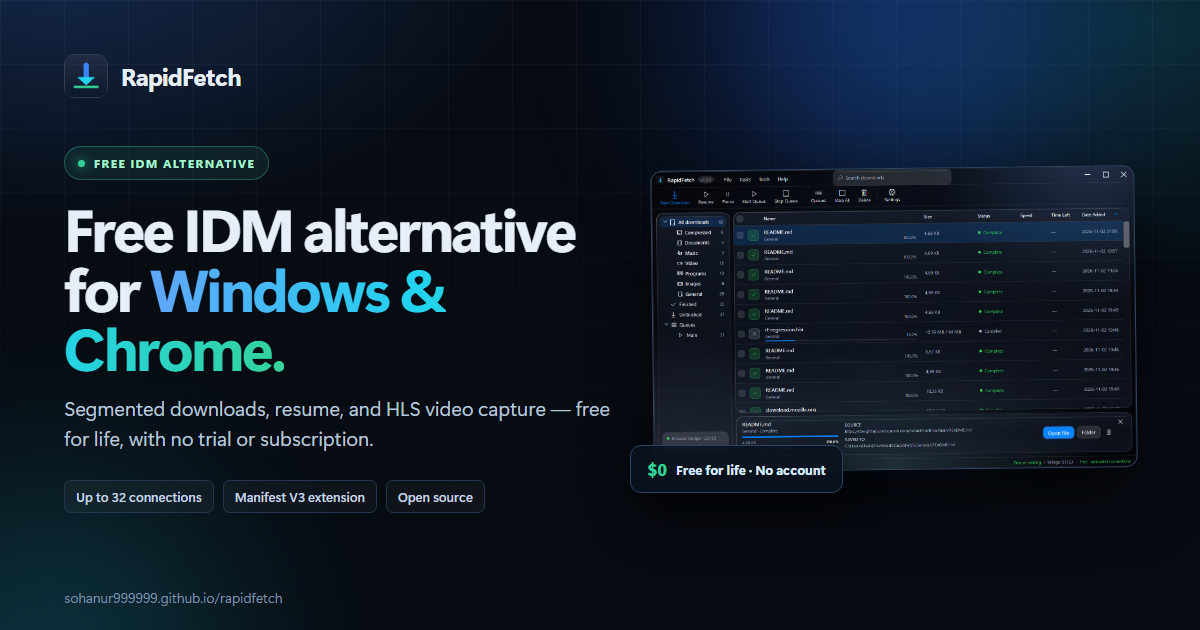
Quick answer: RapidFetch is a free IDM alternative for Windows 10 and 11 with a Chrome extension. It offers segmented downloads, pause and resume, HLS and video capture, queues, and a scheduler without a trial clock, subscription, or account.
It is not affiliated with IDM or Tonec Inc. The Chrome Web Store listing is still pending, so the extension currently installs from the official ZIP.
Key takeaways
- Free for life: no trial, subscription, activation key, or account.
- Built for Windows and Chromium browsers: a desktop app plus a Manifest V3 extension for Chrome, Edge, Brave, Vivaldi, Opera, and Chromium.
- IDM-style transfer controls: up to 32 HTTP range connections per file, per-segment retry, and resume from a
.partfile. - More than HTTP files: detects direct media and HLS playlists, with optional yt-dlp support for supported video pages.
- Honest limitation: the Chrome Web Store listing is not live yet, so Chrome users must load the extension ZIP through Developer mode for now.
- Not for everyone: it is Windows-only, does not bypass DRM, and is a young project compared with commercial download managers.
What is RapidFetch?
RapidFetch is an independent, open-source download manager for Windows with a native Chrome extension. It was built as a clean-room alternative to Internet Download Manager: segmented transfers, resume, browser capture, queues, scheduling, media detection, and speed controls are all included in the free build.
The project is published under the MIT license on GitHub. There is no paid “Pro” tier and no activation server. That makes it a practical free IDM alternative for people who want the core download-manager workflow without buying a license or hunting for modified software.
It is not a clone of IDM. The interface, engine, and browser bridge are original. RapidFetch also focuses on local data: download history and settings stay in %APPDATA%\RapidFetch, and the extension talks to the desktop app on the same PC.
RapidFetch vs IDM: the practical differences
IDM is a mature commercial product with years of development and paid support. RapidFetch is a newer open-source project. The right choice depends on which trade-offs matter to you.
| Feature | RapidFetch | Internet Download Manager (IDM) |
|---|---|---|
| Price | Free for life | Trial, then a paid license |
| Account required | No | License-based |
| Segmented downloads | Up to 32 HTTP range connections | Yes |
| Pause and resume | Yes | Yes |
| Browser capture | Manifest V3 extension for Chromium browsers | Browser integration available |
| HLS and video support | Direct media, HLS, and optional yt-dlp | Video grabber |
| Queue and scheduler | Yes | Yes |
| Open source | Yes, MIT license | No |
| Platform | Windows 10 and 11, 64-bit | Windows, with its own system requirements |
| Commercial support | Community and GitHub issues | Paid product support |
Important: this is a feature comparison, not a speed benchmark. Download performance depends on the server, your ISP, the route, and whether the server supports byte ranges. RapidFetch does not claim to be faster than IDM in every situation.
What RapidFetch does well
Segmented downloads and reliable resume
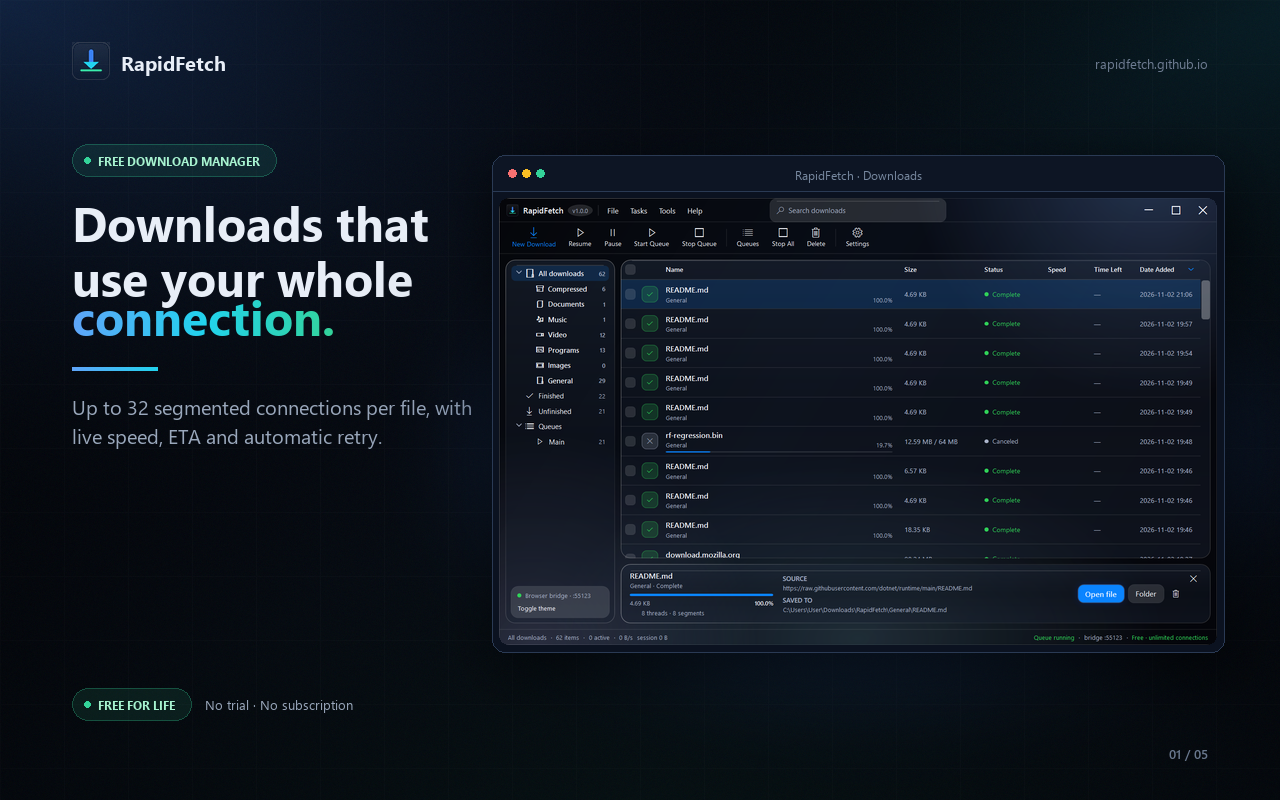
RapidFetch can split a file into multiple HTTP range requests and download the parts in parallel. The default configuration is intentionally conservative; you can raise the connection count for a file or download. If a segment fails, it retries that segment instead of restarting the whole transfer.
When you pause, close the app, or lose your connection, RapidFetch keeps a .part file and a segment map. On resume, it continues from the saved ranges. Servers that do not support byte ranges fall back to a single stream instead of failing.
A Chrome download manager, not just a desktop app
The Manifest V3 extension captures browser downloads, links, media, and right-click actions and hands them to the desktop app through a native messaging host. It supports Chrome, Edge, Brave, Vivaldi, Opera, and other Chromium browsers.
Automatic capture is on by default and can be toggled from the toolbar. If RapidFetch is not running, the native host starts it. The extension remembers recent captures, so reopening the browser does not replay old downloads into the queue.
Video, HLS, and batch downloads
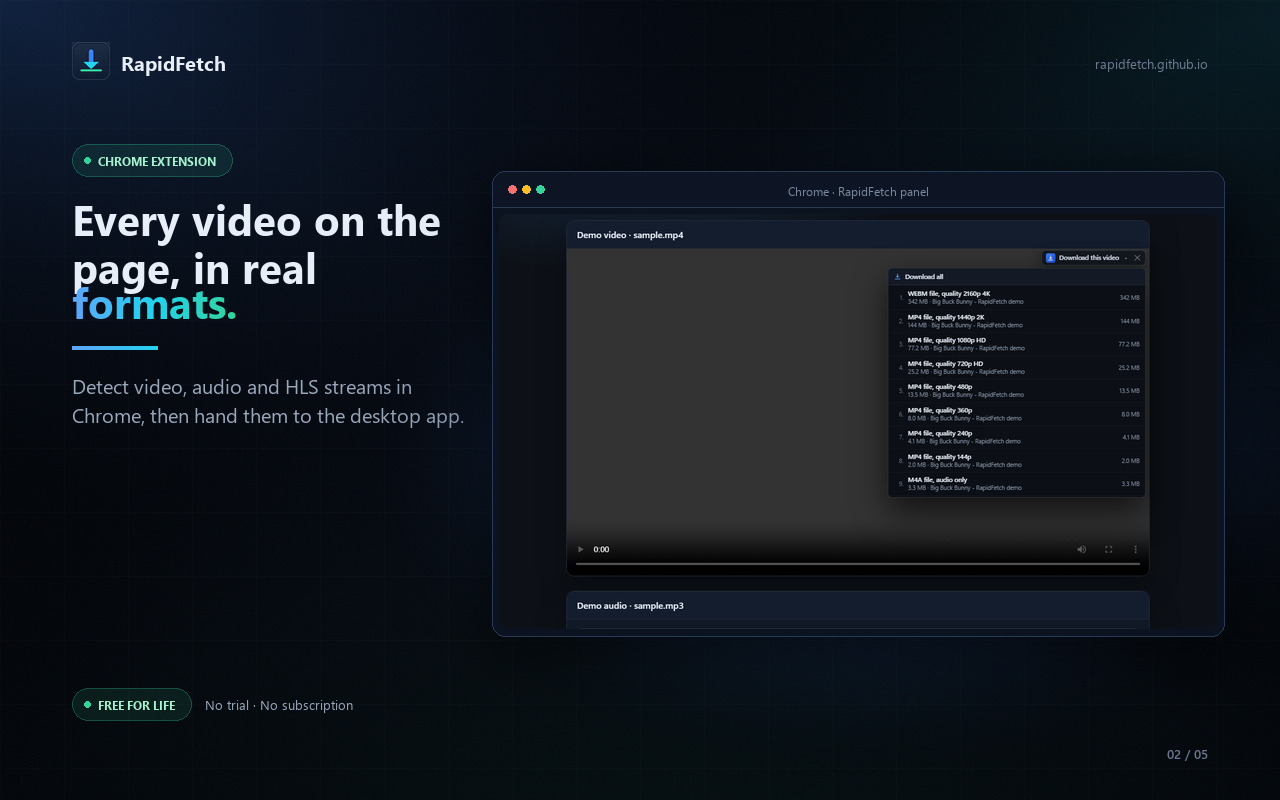
RapidFetch detects direct video and audio files and HLS playlists in the page and in network requests. HLS segments can be downloaded and joined into a playable file. For supported pages whose audio and video arrive as separate tracks, the optional yt-dlp integration can resolve formats, merge the result with ffmpeg, and use browser cookies when a signed-in session is required.
This is a video downloader for Chrome only in the sense that it captures media the browser can already access. It does not bypass DRM, paid streaming protections, or site permissions. Download only content you own or have permission to save.
Queues, scheduling, and speed controls
You can limit concurrent downloads, set a daily transfer cap, and choose a download window that can wrap past midnight. The scheduler can exit the app, sleep, hibernate, or shut down the PC when the queue finishes. Per-download speed limits, categories, custom folders, search, sorting, and CSV export are included as well.
Local data and no advertising
RapidFetch does not include analytics, telemetry, an advertising SDK, or a user account. The extension communicates with the desktop app over a local native messaging channel or a localhost bridge. Your download history, queue, and settings remain on your PC.
Hands-on: what it is like to use
For this guide, I installed RapidFetch 1.0.0 on a Windows 11 64-bit machine. The setup runs per-user, so it does not require administrator rights. It installed the app, registered the native messaging host, and launched the manager. I then loaded the extension ZIP in a clean Chromium profile.
After pinning the extension, a test download was captured from the browser and appeared in the desktop queue. Pausing and resuming continued from the existing partial file rather than starting over. The floating transfer panel showed live speed and per-file controls while the main window was in the background.
I did not run a side-by-side speed test against IDM, and this article does not claim a winner. The practical difference is the licensing model and the level of project maturity: RapidFetch gives you the core segmented-download workflow for free, while IDM gives you a long-established commercial product with paid support.
How to install RapidFetch on Windows and Chrome
The Chrome Web Store listing is not live yet. Until it is, install the Windows app first, then load the official extension ZIP once in Chrome. The whole process takes a few minutes.
Step 1: Install the Windows app
Download the setup file from the RapidFetch 1.0.0 release. Run it as a normal user. Setup installs to %LOCALAPPDATA%\Programs\RapidFetch by default and registers the native host for Chrome, Edge, Brave, Chromium, Vivaldi, and Opera.
Step 2: Load the Chrome extension
- Download the official RapidFetch extension ZIP.
- Extract the ZIP to a permanent folder. The folder must contain
manifest.jsonat the top level; do not select the ZIP file itself. - Open
chrome://extensionsin Chrome. - Turn on Developer mode.
- Click Load unpacked and select the extracted folder.
- Pin RapidFetch to the toolbar and test a download link.
If you installed with the setup app, you can skip the ZIP download and load %LOCALAPPDATA%\Programs\RapidFetch\extension instead. Chrome may show a developer-mode reminder while an unpacked extension is loaded. That is normal for a manual install and does not change how the extension works.
Download RapidFetch free for Windows
Windows 10/11 · 64-bit · Free for life · No account
Who should use RapidFetch?
- Windows users who want a free download manager with segmented transfers and resume.
- Chrome users who want browser downloads to open in a desktop manager automatically.
- People who need HLS or direct video capture for content they are allowed to save.
- Users who want scheduling, category folders, speed limits, and batch queues without a subscription.
- Anyone who prefers open-source software and local data over an account-based service.
Who should skip it?
- Mac and Linux users: the desktop app is Windows 10/11 64-bit only.
- Anyone who needs one-click store installation today: the Chrome Web Store listing is still pending, so the extension is a manual ZIP install.
- Users who need DRM or paid-streaming extraction: RapidFetch does not bypass DRM or access controls.
- Teams that require commercial support: RapidFetch is a community project; IDM may be the safer choice for a business that needs a support contract.
- People who want every IDM edge case: IDM has years of maturity and integrations that a new project has not replicated yet.
Is RapidFetch safe and private?
RapidFetch is open source under the MIT license, so you can inspect the code and build it yourself. The project publishes SHA-256 checksums with its release files. The Windows app is self-contained, and the extension only communicates with the desktop app on your computer.
No software can be called risk-free. If you download any executable, verify the source, check the checksum, and scan the file with your security software. RapidFetch does not include a bundled adware installer, a browser toolbar, or a background licensing service.
The extension asks for broad site access because downloadable media can be served from any domain. It uses that access to detect media and capture downloads; it does not inject ads or alter search results. You can read the RapidFetch privacy policy for the full data-handling details.
Is RapidFetch on the Chrome Web Store?
Not yet. The Chrome Web Store listing is still pending. That is why this guide uses the official extension ZIP and the Load unpacked flow. The ZIP contains the same Manifest V3 extension prepared for the store, and the extension keeps a stable ID so the native host connection continues to work after reinstalling the app.
A manual install is not as convenient as a store install, and Chrome may show a developer-mode reminder. If one-click installation is a hard requirement today, a commercial download manager is the more practical choice until the RapidFetch listing is approved.
Disclosure: RapidFetch is an independent project. This article is not sponsored by IDM or Tonec Inc., and BroBuddy does not distribute IDM, cracks, keygens, or modified builds. Internet Download Manager is a trademark of its respective owner.
Frequently asked questions
Is RapidFetch really free?
Yes. The current build is free for life with no trial clock, subscription, registration key, or account. Every feature described in this post is included in the free build. Check the project page for the latest details before installing.
Is RapidFetch a good free IDM alternative?
It is a good fit if you want segmented downloads, resume, Chrome capture, HLS support, queues, and a scheduler on Windows without paying for a license. It is not a complete replacement for IDM in every area, especially commercial support, platform coverage, and mature edge-case handling.
Does RapidFetch work on Mac or Linux?
No. The desktop app is built for Windows 10 and Windows 11, 64-bit. The Chrome extension is a companion to the Windows app, so it is not a standalone browser downloader.
Can RapidFetch download YouTube or Facebook videos?
It can handle direct media and HLS streams, and the optional yt-dlp integration supports some video pages, including Facebook watch pages and reels. Support depends on the site and the current yt-dlp version. It does not bypass DRM or download paid content you do not have permission to access.
Why does Chrome show a developer-mode warning?
Chrome shows that reminder when an extension is loaded unpacked instead of installed from the Chrome Web Store. The warning is expected for the current RapidFetch install method and does not mean the app is malicious. Read the source and verify the release checksum if you want extra assurance.
Does RapidFetch collect my downloads or browsing history?
No. The project states that it has no analytics, telemetry, or advertising SDK. Download history and settings stay in %APPDATA%\RapidFetch, and the extension communicates with the desktop app locally. Review the privacy policy for the complete explanation.
Can RapidFetch accelerate every download?
No. Segmented acceleration only works when the server supports HTTP range requests. Servers that do not support ranges fall back to a single connection. Your ISP, the server, and the route also affect real-world speed, so results vary by file.
Does RapidFetch have ads or a Pro upsell?
No. The free build does not include ads or a locked Pro tier. That is part of the appeal of this free IDM alternative, but it also means the project relies on open-source contributions and community support rather than license sales.
Final verdict: a free IDM alternative worth testing
RapidFetch covers the core workflow that makes IDM useful for many people: segmented transfers, resume, browser capture, HLS and video handling, queues, and scheduling. It does that without a trial clock or subscription, and the source is available under the MIT license.
The trade-offs are real. The app is Windows-only, the Chrome Web Store listing is not live yet, and the project is new compared with IDM. If you need one-click store installation, commercial support, or DRM handling, keep looking. If you want a free, local-first download manager for Windows and Chrome, RapidFetch is worth a test.
Official download page · Windows installer, portable EXE, and extension ZIP
Sources and further reading
- RapidFetch source code on GitHub
- RapidFetch v1.0.0 release and checksums
- RapidFetch privacy policy
- RapidFetch download page and install guide
More tech guides: browse the BroBuddy Tech Help section.